Showing posts with label MSDyn365FO. Show all posts

Tuesday, May 12, 2020

Get SQL name of Temp table Dynamics 365

Using code below in runnable class we can find temporary table name, which is created in SQL tempDB.


// Declare a TempDB table buffer
TmpCustName tCustName;
   
// Insert data to create the table in TempDB database in SQL
tCustName.AccountName = '10001';
tCustName.insert();
   
// Display the name

info(tCustName.getPhysicalTableName());


Dynamics 365 Trace parser does not work

While collecting and monitoring trace, we were getting error as below:

Error:
The ETW Providers  “Microsoft-AX-XPPExecutionTraces” and “Microsoft-Dynamics-AX-ExecutionTraces” aren't installed in the VM

Issue:
Below mentioned providers were not enabled.
Microsoft-Dynamics-AX-XppExecutionTraces : Used to capture X++ methods events.
Microsoft-Dynamics-AX-ExecutionTraces : Used to capture SQL events.

Solution:

Execute command below to enable both events.

$resourcefiledir = "C:\AOSService\webroot"
$inputmanfile = "C:\AOSService\webroot\Monitoring\DynamicsAXExecutionTraces.man"
$outputmanfile = "C:\AOSService\webroot\Monitoring\DynamicsAXExecutionTraces_copy.man"
$temp = Get-Content $inputmanfile
$temp = $temp -replace "%APPROOT%",$resourcefiledir
$temp | out-file $outputmanfile
wevtutil im $outputmanfile
$inputmanfile = "C:\AOSService\webroot\Monitoring\DynamicsAXXppExecutionTraces.man"
$outputmanfile = "C:\AOSService\webroot\Monitoring\DynamicsAXXppExecutionTraces_copy.man"
$temp = Get-Content $inputmanfile
$temp = $temp -replace "%APPROOT%",$resourcefiledir
$temp | out-file $outputmanfile
wevtutil im $outputmanfile

Friday, April 17, 2020

D365 FO you are not authorized to login with your current credentials.


Error:
You are not authorized to login with your current credentials. You will be redirected to the login page in a few seconds.

Reason:
Database restored into developer environment from another environment.

Solution:
Case 1:
If you have credentials of the user, who was the Admin in the environment from where database is restored - Use it!

Case 2:
If environment is locally hosted, we don't have credentials, we can use "Admin provisioning tool" to provision Admin user again. shortcut of this application is available in desktop otherwise you can find it from
Check K:\AosService\PackagesLocalDirectory\Bin


Case 3:
If the environment is Microsoft hosted, we will not be able to run “AdminUserProvisioning” tool and face error as below.

Here we have access of SQL database, so we can use query below to update Admin account.
Note: Value used in update query below, you can find from another database in your environment.   
UPDATE U
SET U.NETWORKALIAS = 'MThacker@abc.com',
    U.NETWORKDOMAIN = 'https://sts.windows.net/',
    U.SID = 'S-1-19-1410091826-xxxx-4079435192',
    IDENTITYPROVIDER = 'https://sts.windows.net/',
    OBJECTID = '25E55EE6-AB98-xxxxxxxx-FE00ACD05DBB'
--    Enable = 1
FROM UserInfo U WHERE U.Id LIKE 'Admin'

For case 3, after using query above, I was able to login to FO environment but still i am not sure this single query is enough?! 
Let me know, if you have any other experience with this! 


Monday, May 6, 2019

Duplicate records in Dynamics 365 Operations using X++


Example below can be used as sample code to find duplicate records from table using X++, either in AX 2012 or Dynamics 365 for finance and operations.

static void rdWrkCtrValidationDupRecords(Args _args)
{
    rdWrkCtrValidation  wrkCtrValidation;

    while select count(RecId) from wrkCtrValidation
        group by wrkCtrValidation.WrkCtrId
    {
        if(wrkCtrValidation.RecId >1)
        info(strFmt('%1 - %2',wrkCtrValidation.WrkCtrId, wrkCtrValidation.RecId));
    }

}

Query in SQL for similar requirement.

SELECT

    WRKCTRID,OUTPUT,COUNT(*)
FROM
    rdWrkCtrValidation
GROUP BY
    WRKCTRID,OUTPUT
HAVING
    COUNT(*) > 1


Tuesday, April 30, 2019

Address column Formatting in LogisticsPostalAddress table AX 2012


Issue/behavior

We have noticed that some of the records in table LogisticsPostalAddress column Address stores actually %1 instead of Country/Region.

If we review Address column using table browser, we might not able to notice this behavior due to PostLoad method on LogisticsPostalAddress table.

To review this, either comment method below in PostLoad method or review using SSMS.
DirUtility::replaceAddressToken(this);

What can be the issue due to this behavior?

1. When we are using this field for the integration, this will pass on %1 to other system.
2. To Print address on reports, if we are using bulk operation (Insert_Recordset) instead of row by row (while select) operation, it will show %1 on report/print.

Can we handle this behavior without code? - Yes

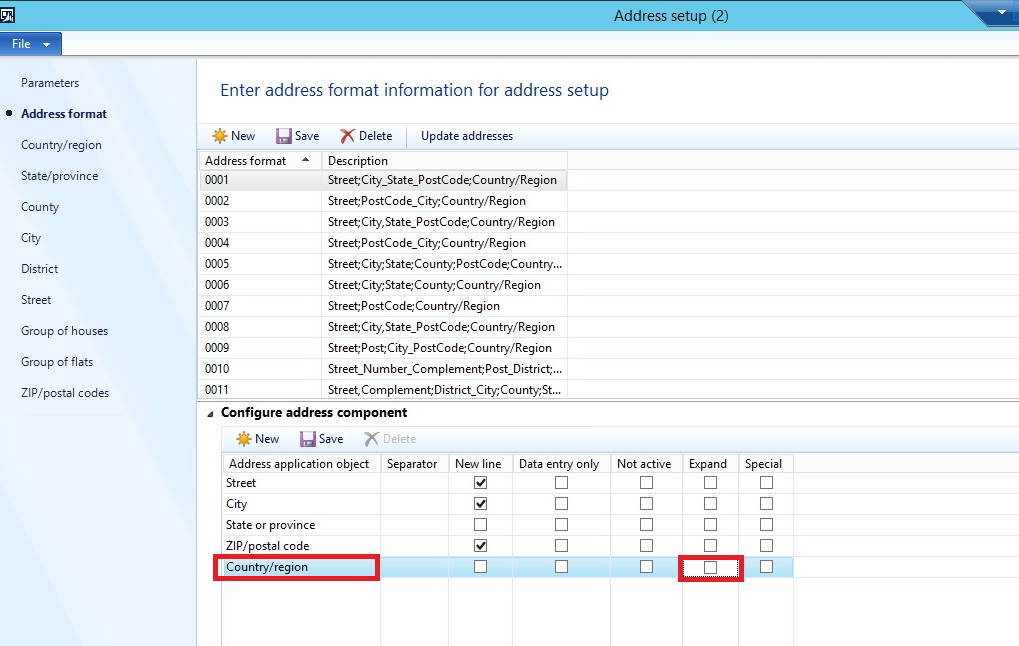
When we have selected Expand option in address format – DAX will store %1 instead of Country/Region in Address column of LogisticsPostalAddress address. 
BUT
If we have not selected Expand option in address format – DAX will store Country/Region Code instead of %1. i.e. CA instead of CANADA, so wherever we refer this field it will pass on CA instead of CANADA


Let me know, if you have any more inputs for the same.


Wednesday, April 10, 2019

Upgrade from AX 2012 to Latest Dynamics 365 Finance and Operation

Below are the steps defined by sequence.

1. Create new Upgrade project in Dynamics LCS.

2. Create VSTS Project and connect it with LCS Project.

3. Upload model store to generate generate Upgrade analysis report.

4. Upload model store to generate Code upgrade reports and get upgraded code.

5. Setup System Diagnostics to get an more idea about current environment and report to help in upgrade process. Link
This report will be accessible by link below, where last numbers are LCS Project Id
https://diag.lcs.dynamics.com/UpgradeAnalysisReport/Report/1350890 

6. Create Project Plan using inputs above.

Generally, This project consist of following phases.
Currently we have started with 1st activity Code upgrade, i will keep this post updated, as and when it is required.

A. Code upgrade.
   1. Decide where to deploy environment.
  • If customer has purchased licenses, we can use their Build and Test environment to start code upgrade.
  • Deploy in Partner LCS account using MS Azure subscription.
  • Download local VM from LCS.
   2. Connect D365 FO VM to the VSTS Project to get upgraded code to work on further    and complete code upgrade.

B. Data upgrade
  • Install hotfix to get Pre-upgrade checklist, review and complete checklist - Link

C. UAT

D. Pre-Go Live activities - Link

E. GO Live

F. Post Go Live Support.

Reference Links.
1. Microsoft documentation - all about upgrade from AX 2012 to Latest D365 FO. - Link


Things to review before estimate an upgrade efforts.
1. Latest CU must be installed in AX 2012 environment - Recommended by MS at Link. 
Click here to check latest available CU update for AX 2012 environments.

Tuesday, March 12, 2019

Clear cache with code X++ Dynamics 365/AX 2012

Code below can be used to clear caches for Dynamics 365 for Operations as well as AX 2012.

In AX 2012, copy and past code below into Job to execute and clear cache.

In D365 create runnable class as below, set that class as startup object for the project, set that project as startup project for the solution and execute class.

class RunnableClassTest
{       
    /// <summary>
    /// Runs the class with the specified arguments.
    /// </summary>
    /// <param name = "_args">The specified arguments.</param>
    public static void main(Args _args)
    {
        xSession::removeAOC();
        SysTreeNode::refreshAll();
        SysFlushDictionary::main(null);
        SysFlushAOD::main(null);
        SysFlushData::main(null);
        //SysBPCheckAIFDataObject::flushCache(true); // only for AX 2012
        SysFlushReportServer::main(null);
        SysFlushSystemSequence::main(null);
        xSession::updateAOC();
        info("Executed.");
    }

}

Saturday, March 9, 2019

Dynamics 365 for Operations On-premise installation/Troubleshooting

I will keep updating this post with the helpful links for the installation and troubleshooting D365 for Operation on-premise version.

Install D365 On-Premise PU 12:
https://docs.microsoft.com/en-us/dynamics365/unified-operations/dev-itpro/deployment/setup-deploy-on-premises-pu12

Redeploy on-premise environment: Failed status.
https://docs.microsoft.com/en-us/dynamics365/unified-operations/dev-itpro/deployment/redeploy-on-prem

Setup Network Printer for On-Premise environment.
https://docs.microsoft.com/en-us/dynamics365/unified-operations/dev-itpro/analytics/install-network-printer-onprem

Troubleshooting:
https://docs.microsoft.com/en-us/dynamics365/unified-operations/dev-itpro/deployment/troubleshoot-on-prem


Errors and solutions while installing On-Premise D365 for Operations
ADFS Configuration error:
https://allaboutax.blogspot.com/2018/12/adfs-configuration-error-invalid-scope.html

AX 2012/Dynamics 365 operations Performance monitoring related links.

To troubleshoot performance of AX 2012 or Dynamics 365 operations, i am collecting some helpful links on this post.

I will keep updating this blogs as and when required accordingly.

Performance monitoring:

https://blogs.msdn.microsoft.com/axinthefield/ax-performance-monitor-101-setup-perfmon-for-continuous-monitoring-with-rolling-files/

Disk:
https://blogs.technet.microsoft.com/josebda/2014/10/13/diskspd-powershell-and-storage-performance-measuring-iops-throughput-and-latency-for-both-local-disks-and-smb-file-shares/

https://blogs.msdn.microsoft.com/axinthefield/assessing-your-disk-performance-and-your-needs-collecting-relevant-data-part-1/

https://blogs.msdn.microsoft.com/axinthefield/assessing-your-disk-performance-and-your-needs-analyzing-collected-data-part-2/

AX 2012

Performance dashboard
https://blogs.msdn.microsoft.com/axinthefield/3-powershell-scripts-for-dynamics-ax-refresh-report-and-monitor/

AX 2012 Forms performance
https://blogs.msdn.microsoft.com/axinthefield/how-to-measure-the-performance-of-the-dynamics-ax-2012-forms/

Client Access log: (how often they are accessing forms)
https://blogs.msdn.microsoft.com/axperf/2011/10/14/client-access-log-dynamics-ax-2012/

Friday, March 8, 2019

Try catch examples D365/AX 2012

   
Generic try catch example, which will give detailed information about error can be used in AX 2012 as well as D365 for operations.

     try
     {

     }
     catch (Exception::CLRError)
     {
            ex = ClrInterop::getLastException();
            if (ex != null)
            {
                ex = ex.get_InnerException();
                if (ex != null)
                {
                    error(ex.ToString());
                }
            }
    }
    catch (Exception::Error)
    {
        info(ppAutoInventRegister::getErrorStr());
    }
    

    public static server str getErrorStr()
    {
        SysInfologEnumerator enumerator;
        SysInfologMessageStruct msgStruct;
        Exception exception;
        str error;
        enumerator = SysInfologEnumerator::newData(infolog.cut());
        while (enumerator.moveNext())
        {
            msgStruct = new SysInfologMessageStruct(enumerator.currentMessage());
            exception = enumerator.currentException();
            error = strfmt("%1 %2", error, msgStruct.message());
        }
        return error;
    }

Friday, February 22, 2019

num2Str example AX 2012/Dynamics 365

Below is sample example for the function num2str

static void dtformatNum(Args _args)
{
    real lineNum = 5.69;
    int d = 0;
    ;
    while ((d < 10) && (lineNum != str2num( num2str(lineNum,1,d,1,0) ) ))
        d++;

    info(num2str(lineNum, 1, d, 1, 0));

}

Tuesday, October 16, 2018

Import Export model Dynamics 365 for operations

Following model management commands i have tried on Demo VM downloaded from LCS, which i found working as per the expectations.

Export model in Dynamics 365 operations.
C:\AOSService\PackagesLocalDirectory\Bin>ModelUtil.exe -export -metadatastorepath=C:\AOSService\PackagesLocalDirectory -modelname="FleetManagement" -outputpath=c:\temp

Import model in Dynamics 365 operations.
C:\AOSService\PackagesLocalDirectory\Bin>ModelUtil.exe -import -metadatastorepath=C:\AOSService\PackagesLocalDirectory -file=C:\Test\XYZDevelopments.axmodel

Delete model in dynamics 365 operations.
C:\AOSService\PackagesLocalDirectory\Bin>ModelUtil.exe -delete -metadatastorepath=C:\AOSService\PackagesLocalDirectory -modelname="FleetManagement"

Tuesday, September 25, 2018

Dynamics 365 for operations administration.

I want to maintain this blog post for purpose of dynamics 365 for operations administration tips and tricks.
This will consist of useful links from around the world to make administrator's life easy.

1. Dynamics 365 for operations, downloaded demo or development VHD default passwords - Link
Server remote login:
Username: local\Administrator
Password: pass@word1

SQL login (SSMS)
Username: axdbadmin 

Password: AOSWebSite@123

2. Database synchronizations using powershell
C:\AOSService\webroot\bin\Microsoft.Dynamics.AX.Deployment.Setup.exe -bindir "C:\AosService\PackagesLocalDirectory" metadatadir "C:\AosService\PackagesLocalDirectory" -sqluser "AOSUSER" -sqlserver "." -sqldatabase "AxDB" -setupmode "sync" -syncmode "fullall" -isazuresql "false" -sqlpwd "AOSWebSite@123"


3. Batch service exception/ Maintenance mode in Dynamics 365 operations - Link
Command: (Standard way)
C:\AOSService\PackagesLocalDirectory\Bin\Microsoft.Dynamics.AX.Deployment.Setup.exe –metadatadir C:\AOSService\PackagesLocalDirectory –bindir C:\AOSService\PackagesLocalDirectory –sqlserver . –sqldatabase axdb –sqluser AOSUser –sqlpwd AOSWebSite@123 –setupmode maintenancemode –isinmaintenancemode false

Using SQL query (Not verified!)
Update SQLSystemvariables set Value=0 where parm='CONFIGURATIONMODE'

4. Import license file  - Link

5. Deploy Dynamics 365 for operations environment into Azure - Link
This is good series of blog posts, to take you through deployment of various LCS environments. i.e. Development, Build and Test and Production environments.

6. Configure port forwarding. - Link

6. Install latest CU on local developer VM. - Link


Happening

Upgrade from AX 2012 to Latest Dynamics 365 Finance and Operation

Below are the steps defined by sequence. 1. Create new Upgrade project in Dynamics LCS. 2. Create VSTS Project and connect it with L...

Trending now